Introduction
Nothing is more infuriating than trying to get into your WordPress site only to see a message saying there are too many redirects. It is common in the WordPress world, but it can be a major roadblock—preventing both visitors and owners from accessing their website. The good news is it is fixable and is generally easy to fix, with no advanced technical skills needed.
In this blog, we will explain what the ‘too many redirects’ issue is, how to identify it, and what to do to fix the issue.
What Is the ‘Too Many Redirects’ Error?
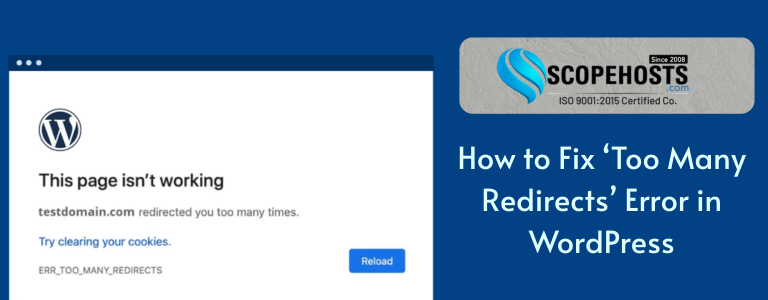
This error is often shown when your site is caught in a repeated loop of redirection. For example, the URL being loaded takes you to another URL, then it takes you back to the first URL, and over and over again. In the end, the browsers, such as Chrome and Firefox, cease trying and display something like “ERR_TOO_MANY_REDIRECTS” or “This page isn’t redirecting properly.”
In short, the browser is stuck in a loop with no direction to the content it is being requested.
Why This Error Happens
The ‘Too Many Redirects’ error is typically the result of a misconfiguration or conflicting settings that govern how URLs are handled. One of the common reasons for this is when the WordPress Address does not match your Site Address URL settings. Your WordPress Address and Site Address URL settings dictate how your website’s address is displayed and how requests are handled.
Another common reason is a redirection plugin that is inadvertently making a loop. For example, one plugin might be redirecting visitors from http:// to https://, while, while another tries to send them back from https:// to http://. The result is a loop.
Other possibilities include a misconfigured .htaccess file, conflicting theme or plugin issues, misconfigured SSL settings, or a mismatch between the settings for your server and your CDN.
Signs You’re Experiencing Redirect Loops
Usually, you will know the issue immediately. The error message displayed by the browser is usually clear and tells you that you have redirected too many times. In other instances, your site may keep reloading the homepage, or the admin login page, and not fully load.
At times the site owner may be locked out of the WordPress dashboard, which takes troubleshooting to another level. You may also find you can access it from one browser, but not another which points to a cache issue.
You can use tools found online like Redirect Checker to see the redirect chain, or you can look at the dev tools of your browser to check if you want to confirm.
Step-by-Step Methods to Fix the Error
Now we know the basics, let’s get to solving the problem.
Start with your browser
Before taking any actions, clear your cookies and cache in your browser. Often, outdated cookies retain bad redirect data. Try opening your site in an incognito window or a different browser to eliminate those as issues.
Correct Your WordPress URL Settings
If you are able to access the WordPress dashboard, visit Settings > General and verify that the WordPress Address (URL) and Site Address (URL) are the same URL and in the correct format (both with https:// or both with http://).
If you are unable to get access to the dashboard, you can also manually define these values in your wp-config.php file by using the following code:
define(‘WP_HOME’, ‘https://yourdomain.com’);
define(‘WP_SITEURL’, ‘https://yourdomain.com’);
Replace yourdomain.com with your actual domain.This makes WordPress utilize these URL settings.
Review and Restore the .htaccess File
If you are using an Apache server, the .htaccess file determines how your URLs are processed. You can run into a redirect loop simply because a .htaccess file is no longer working correctly or is corrupt.
To diagnose the issue, please use either FTP or the File Manager from your hosting control panel to access your site and go to the root directory. You should see a file called .htaccess rename the file to .htaccess_old. This effectively deactivates the file. Now try going to your site. If the error is gone, you know that whatever is wrong is in the .htaccess file.
In the WordPress dashboard, first, ensure you still have access. If you can get into the dashboard, go to Settings > Permalinks, and click on Save Changes. This will create a default .htaccess file. If you cannot access your dashboard you can manually input the WordPress rewrite rules if you need to.
Deactivate All Plugins Temporarily
Redirect loop issues are frequently caused by plugins and especially if those plugins handle URL redirection, SEO, caching, or security features. If you have gone through all the previous steps and are still encountering the redirect loop, make sure to disable all plugin related activity.
You can even disable your plugins if you do not have dashboard access. Simply use your FTP access, locate the wp-content directory on the WordPress server, and rename the plugins directory to plugins backup or similar. That way you have disabled all plugins immediately. Then reload your website to see if it is working again.
If your website is working again, rename the folder back to plugins, and head back to your WordPress dashboard to reactivate each plugin one at a time until you find the plugin that is causing the conflict.
Switch to a Default Theme
Themes can also hold functions that can interfere with redirection.To check this, change to a default WordPress theme like Twenty Twenty-Four. If you can’t access the admin panel, you can rename your theme folder using FTP. WordPress will then automatically revert back to the default theme.
If your site operates as expected following the switch, this means there is an issue in your theme’s functions.php or the custom redirection itself.
Address HTTPS and SSL Configuration Issues
Incorrect handling of HTTPS is another major reason why redirect loops occur. If you have recently added an SSL certificate and are now trying to force HTTPS, either with a plugin or a manual .htaccess file, this may now produce conflicting redirects.
To fix this, simply make sure that only one of the following is forcing HTTPS: A plugin like Really Simple SSL, or your web server settings – NOT BOTH! Also make sure that your hosting provider is correctly installing and configuring the SSL certificate on the server.
In wp-config.php, you can also add the line:
define(‘FORCE_SSL_ADMIN’, true);
This ensures secure logins without conflicting redirects.
Check CDN and Third-party Services
If your website is using a content delivery network like Cloudflare, it’s possible that misconfigured page rules or SSL settings are causing the issue too. Log into your CDN dashboard, and review any forwarding rules or SSL modes.
For example, if you’re a Cloudflare user, make sure your SSL mode is correct, either Full or Flexible, and that you aren’t redirecting URLs using your page rules unnecessarily. You could always find out if that is the problem, by temporarily pausing Cloudflare.
Review Server-Level Redirects
Sometimes, the web server (especially if using VPS or dedicated hosting) will have conflicting redirect rules pertaining to your WordPress or plugin config. On Apache servers, these might be in other .htaccess rules. On Nginx, these should be visible in the config files.
You may need help from your hosting provider, since inspecting and editing these settings could be potentially harmful.
Best Practices to Avoid Redirect Errors in the Future
- Keep URLs consistent: Either www or non-www, http or https.
- Avoid stacking plugins that handle redirection – choose a single reliable option.
- Use plugins responsibly: Don’t let duplicate mechanisms take control of URL behaviors.
- Regularly audit .htaccess and other configuration files.
- Monitor redirects Use browser dev tools or online tools like httpstatus.io to check for page redirects.
- Install SSL properly and have one system that handles the necessary redirects (web hosting or CDN).
When to Seek Expert Help
If you have exhausted all the solutions mentioned above and the problem persists, it may be time to seek professional assistance. The best place to start is to contact your hosting provider. They can check the server logs and follow the redirect source with more accuracy.
Otherwise, a WordPress developer or technical professional could save you a ton of headaches and hours of frustration if your website’s performance or revenue is on the line.
Final Thoughts
The ‘Too Many Redirects’ error in WordPress can feel daunting at first, but most of the time, the error can be fixed within four easy steps. Whether you need to update your site URLs, deactivate plugins, or correct SSL misconfigurations, tackling it step by step is the best approach.
It’s also important to keep your configurations neat, don’t overlap on any redirection settings, and when changing anything large on your site, keep an eye on how the site behaves afterward. Most of the time, your site will be back up and running as intended with a little patience.