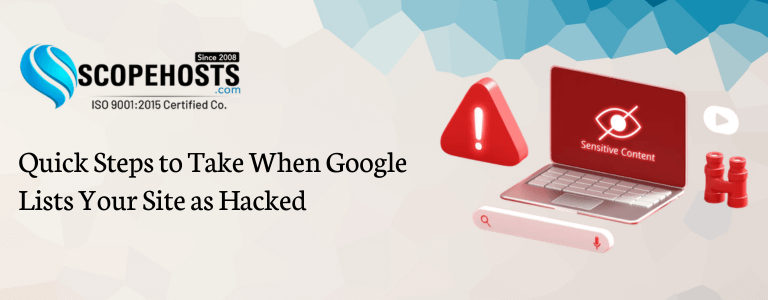
Your website is the foundation of your online presence. Whether you run a business website, blog, eCommerce store, or web application, seeing Google label your site as “This site may be hacked” can be alarming. This warning can instantly reduce your traffic, damage your reputation, and cause visitors to lose trust. However, the good news is that a hacked website can be fully recovered if you act quickly and follow the correct steps. This guide explains how to fix hacked website issues, perform proper website malware removal, and improve your website security using reliable and secure web hosting to prevent future attacks.
What Does “This Site May Be Hacked” Mean?
When Google detects suspicious or malicious content on your website, it displays warnings such as:
- This site may be hacked
- This site may harm your computer
- Deceptive site ahead
These warnings may appear in Google Search results, Chrome browser, and Safe Browsing alerts. Google shows these warnings to protect users from malware infections, spam pages, phishing attacks, and hidden malicious scripts. If your site shows this warning, it means Google has detected serious website security issues that require immediate action and proper website malware removal.

Why Do Websites Get Hacked?
Understanding the cause helps you fix hacked website problems and prevent future attacks.
Weak Passwords
Using simple passwords like admin123 or password makes it easy for hackers to gain access.
Outdated Software
Old versions of WordPress, plugins, themes, and PHP often contain security vulnerabilities.
This is one of the most common reasons why website owners search for how to fix hacked WordPress site security issues.
Vulnerable Plugins or Themes
Untrusted or outdated plugins can create security risks and allow unauthorized access.
Poor Quality Hosting
Low-quality hosting may lack firewall protection, malware scanning, and proper isolation. Choosing secure web hosting plays a major role in protecting your website.
Malware Injection
Hackers inject spam pages, redirect scripts, and hidden links to misuse your website and damage your website security.
How to Confirm If Your Website Is Hacked
First, confirm whether your website is compromised.
Check Google Search Console under Security Issues to see detected problems. This helps identify whether your site needs website malware removal. Search your website on Google using site:yourdomain.com and look for spam pages or unknown links. Also check your website manually for redirects, spam content, or unknown files
- Step 1: Enable Maintenance Mode
- Step 2: Scan Your Website for Malware
- Step 3: Remove Malware and Suspicious Files
- Step 4: Update Your Website Completely
- Step 5: Change All Passwords
- Step 6: Restore Clean Backup
- Step 7: Remove Spam Pages from Google
- Step 8: Fix Security Vulnerabilities
- Step 9: Request Google Review
Enable maintenance mode immediately to protect visitors and prevent further damage. This prevents malware from spreading and protects your reputation while you fix hacked website problems.
Perform a complete malware scan using security tools. Malware scanners detect infected files, backdoors, and malicious scripts. This step is essential for complete website malware removal and restoring your website security.
Remove unknown files, suspicious scripts, and spam pages. Check folders like wp-content, plugins, themes, and uploads. Also review the .htaccess file, as hackers often add redirect code there. This is the most important step to fully fix hacked website issues.
Update WordPress core, plugins, themes, and PHP version. Updates fix security vulnerabilities and improve your overall website security.
Change passwords for your WordPress admin, hosting account, FTP, database, and email accounts. Always use strong passwords with mixed characters to protect your website.
If a clean backup is available, restore it. This is often the fastest recovery method. Make sure the backup is created before the hack. Many secure web hosting providers offer automatic backups to help recover quickly
Hackers create spam URLs like /casino or /pills. Remove them using the Google Search Console Removals Tool to prevent users from accessing harmful pages.
Secure your website by installing firewall protection, malware security, and blocking suspicious IP addresses. This improves website security and prevents reinfection.
After cleaning your website, request a review in Google Search Console. Go to Security Issues and click Request Review. Explain that you performed complete website malware removal, fixed vulnerabilities, and secured your website. Google will review and remove the warning if your site is safe.
What Hackers Actually Do After Accessing Your Website
Understanding what hackers do helps you fix hacked website problems more effectively.
Most hackers do not hack your website to destroy it. Instead, they use it silently for their own benefit
They inject spam pages, redirect visitors, install backdoors, and steal data. This makes proper website malware removal critical.
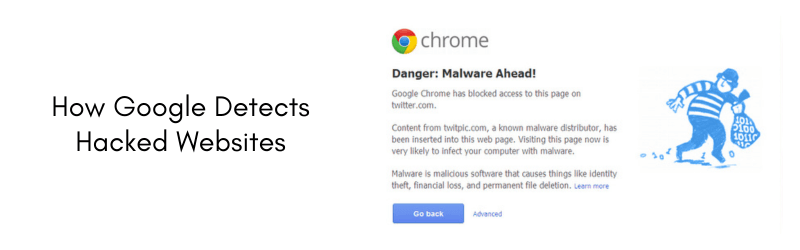
How Google Detects Hacked Websites
Google uses advanced automated systems to scan websites regularly.
Google checks for:
- Malware scripts
- Spam content
- Hidden links
- Redirect behavior
If detected, Google flags the website to protect users and maintain strong website security standards.
How to Protect Your WordPress Website from Future Hacks
WordPress is secure, but proper configuration is essential.
Security plugins provide:
- Firewall protection
- Login protection
- Malware scanning
These tools improve website security and help prevent hacking.
Choosing secure web hosting also provides server-level protection.
How Secure Hosting Helps Prevent Hacking
Your hosting environment plays a major role in website security.
Secure hosting provides:
- Malware scanning
- Firewall protection
- Account isolation
- Security monitoring
This protects your website and reduces hacking risks.
When Should You Take Professional Help?
If you cannot fix the hack yourself, taking professional help is the safest option.
You should seek expert assistance if:
- Malware keeps returning
- You cannot find infected files
- Google warning does not disappear
- Your website keeps redirecting
Professional experts can perform complete website malware removal and restore your website security.
Why Hosting Security Is Important
Your hosting environment plays a major role in security. Choosing secure web hosting provides firewall protection, malware monitoring, and server isolation. This significantly improves website security.
Conclusion:
Google hacked warnings can be stressful, but recovery is completely possible. The key steps include scanning your website, performing proper website malware removal, learning how to fix hacked WordPress site problems, fixing vulnerabilities, requesting a Google review, and choosing secure web hosting to protect your website. Strong website security ensures long-term protection, stable traffic, and business growth.